telugu swarachakra on 9Apps

Free download latest telugu swarachakra for Android here and enjoy it with your phone. Below you can download a list of top and latest apps related to telugu swarachakra . 9APPS is a fast, safe app store. With 9APPS, you can save a lot of time on searching and downloading apps.

#1 Swarachakra Telugu Keyboard
Swarachakra Telugu Keyboard
Rating: star 4.3 | Version: 2.01 | Size: 683.2KB
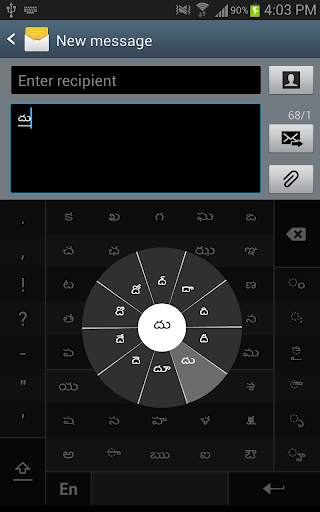
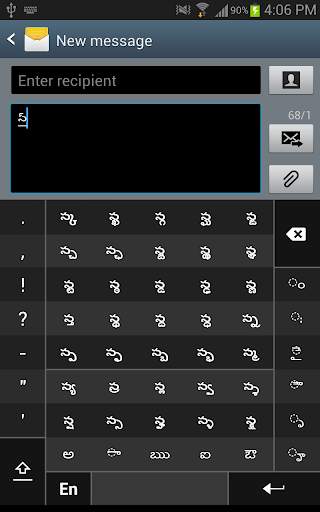
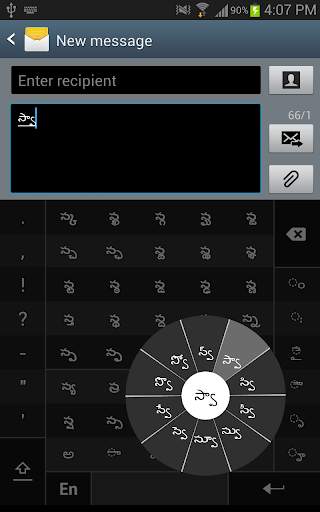
Swarachakra Telugu Keyboard screenshot 1 Swarachakra Telugu Keyboard screenshot 2 Swarachakra Telugu Keyboard screenshot 3

“జీవితంలో ధనం నష్టపోతే, కొంతకోల్పోయినట్టు, కానీ ప్యక్తిత్వం కోల్పోతే సర్వస్వం పోగొట్టుకున్నట్టే... స్వామి వివేకనంద.” If your device can display the Telugu sentence written in quotes perfectly, then your device supports Telugu and Swarachakra should also work well. If you do not see any text, or if some of the words are incorrect, Swarachakra may not work well.
Swarachakra Telugu (తెలుగు స్వరచక్రం) is a touch-screen keyboard for inputting text in Telugu. (Swarachakra is also available in Hindi, Marathi, Gujarati, Kannada, Malayalam, Odia, Punjabi, Bengali, Konkani and Tamil).
Swarachakra uses a logically ordered design based on the structure of Dravidian script. Swarachakra displays the consonants sequenced according to the logical structure of Dravidian script, phonetically grouped and arranged in a grid similar to those found in most school textbooks.
Typing with Swarachakra
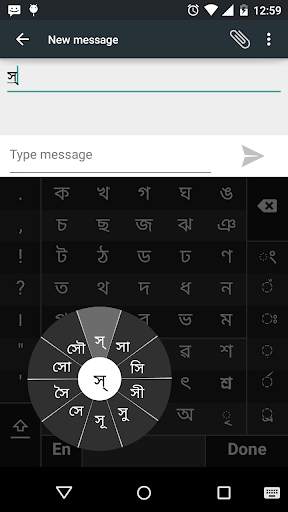
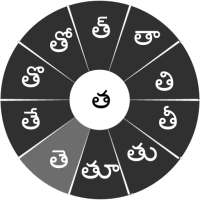
In Telugu lipi, we frequently need to type a combination of a consonant (క) and a matra (ఒత్తులు) (ొ) like క ొ = కొ. When you touch a consonant, a chakra with combination of consonants and 10 frequent matras pops up (క్, కా, కి, కీ, కు, కూ, కె, కే, కొ, కో). The chakra gives a preview of the possible character combinations. To select a combination, you slide the stylus or finger towards it.
Typing conjunct like క్క, క్ష, క్త are particularly hard for most people. Swarachakra makes it easy.
First tap on the first part of the combination and select the vowel (అచ్చు) from the chakra (క ్ ).
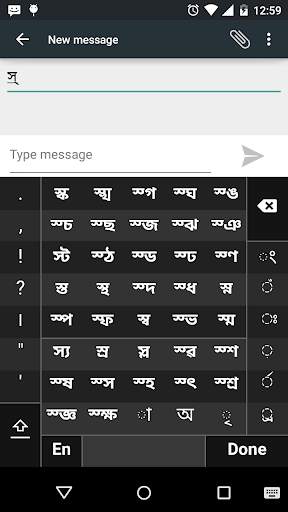
Swarachakra then shows a preview of all possible conjuncts that begin with that consonant (హల్లులు) (క ్ త) = క్త; ఙ ్ ఞ = ఙ్ఞ etc. If you need to add a matra, select it from the new chakra like earlier (క్క, క్ఖ, క్గ, క్ఘ, క్ఙ...).
The other example could be for building difficult combination of consonants like జ్యోత్స్న has to be typed as (జ్య ో = జ్యో) (త్స ్ న = త్స్న) = జ్యోత్స్న
Complete vowels (అ, ఆ, ఇ, ఈ, ఉ, ఊ, ఎ, ఏ, ఒ, ఓ) appear in a separate chakra on the bottom left on pressing letter అ. The extra vowels (ఐ, ఔ) will appear upfront in the right bottom of the keypad. Rarely used vowels and matras (ఋ, ౠ, ఌ, ౡ, ౕ, ౖ, ౘ, ౙ, ఽ) will appear pressing the letter ఋ. Numerals and symbols appear on a shift. You could also switch to the QWERTY keypad temporarily to input English characters.
Installing Swarachakra
Install Swarachakra Telugu by clicking the “Install” button above and follow the steps below:
1. Open “Settings” in your device
2. Select the “Language and Input” and choose the option “తెలుగు స్వరచక్రం” (Swarachakra Telugu)
3. Finally, click on the “Default” option in the “Keyboard and Input methods” section, and select తెలుగు స్వరచక్రం (Swarachakra Telugu) as the default keyboard.
NOTE: Swarachakra is designed for Android 4.0 (ICS) and above versions. It does not work right now on older versions because they do not have Unicode support.

...

👉 For More Detail of Swarachakra Telugu Keyboard

#2 Swarachakra Bangla Keyboard

Swarachakra Bangla Keyboard
Rating: star 4.3 | Version: 2.01 | Size: 606.8KB
Swarachakra Bangla Keyboard screenshot 1 Swarachakra Bangla Keyboard screenshot 2 Swarachakra Bangla Keyboard screenshot 3

মোদের গরব, মোদের আশা, আ-মরি বাংলা ভাষা - অতুলপ্রসাদ সেন
If your device can display this sentence in Bengali perfectly, then your device supports Bengali and Swarachakra should also work well. If you do not see any text, or if some of the words are incorrect, Swarachakra may not work well.
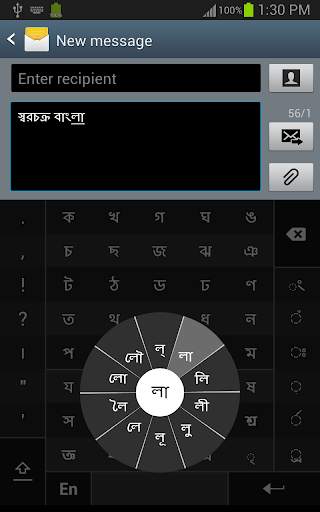
Swarachakra Bangla (স্বরচক্র বাংলা) is a touch-screen keyboard for inputting text in Bengali. (Swarachakra is also available in Hindi, Marathi, Gujarati, Telugu, Kannada, Malayalam, Odia, Punjabi, Konkani and Tamil). Swarachakra uses a logically ordered design based on the structure of Bangla script. It displays the consonants sequenced according to the logical structure of Bangla script, phonetically grouped and arranged in a grid similar to those found in most school textbooks.
Typing with Swarachakra
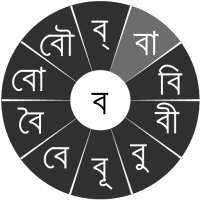
In Bangla, we frequently need to type a combination of a consonant (ধ) and a matra (ো) like ধ ো = ধো. When you touch a consonant, a chakra with combination of consonants and 10 frequent matras pops up (ধা, ধি,ধী, ধু, ধূ, ধে, ধৈ, ধো, ধৌ..). The chakra gives a preview of the possible character combinations. To select a combination, you slide the stylus or finger towards it.
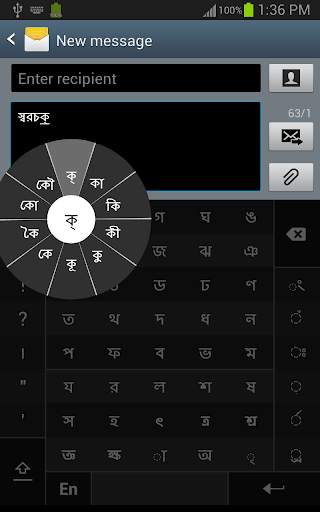
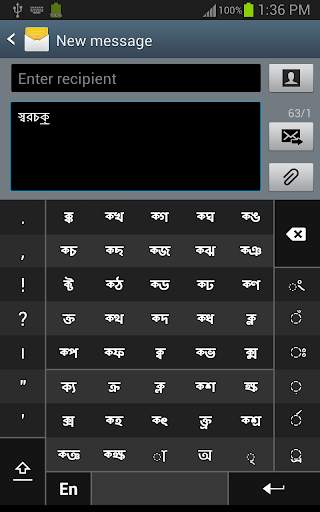
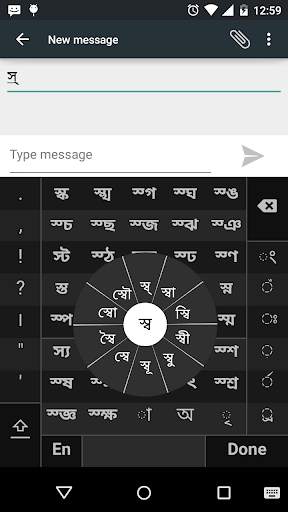
Typing conjuncts like ক্রি , ষ্থ, চ্য় is particularly hard for most people. Swarachakra makes it easy. First tap on the first part of the combination and select the halant from the chakra (স ्). Swarachakra then shows a preview of all possible conjuncts that begin with that consonant (স ् থ = স্থ; চ ् য় = চ্য় etc.). If you need to add a matra, select it from the new chakra like earlier (স্থা, স্থি, স্থী, স্থু , স্থূ ...).
To type a b>rafar (র্থ ), a rashtrachinha (ত্র) or a nukta (ড়, খ়), first select the corresponding key from the right-most bottom keys, and then type as usual.
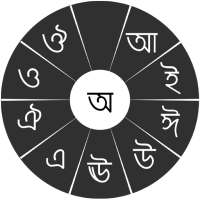
Complete vowels (অ আ ই ঈ উ ঊ এ ঐ ও ঔ) appear in a separate chakra on the bottom right. The less used vowels and matras are next to it (ঽ ৎ ৃ ঋৄ ৄ ৠ ৢ ঌ ৣ ৡ ). Numerals, symbols and rarely used characters appear on a shift. You could also switch to the QWERTY keypad temporarily to input English characters.
Installing Swarachakra
First, install Swarachakra Bangla by clicking the “Install” button above.
Next, you need to “enable” the keyboard. To enable, open “Settings”, select “Language and Input” and check the box in front of স্বরচক্র বাংলা (Swarachakra Bangla) in the “Keyboard and input methods” section.
Finally, click on the “Default” option in the “Keyboard and input methods” section, and select স্বরচক্র বাংলা (Swarachakra Bangla) as the default keyboard. (Sorry, but that’s how Android works)
NOTE: Swarachakra is designed for Android 4.0 (ICS) onwards. It does not work right now on older versions because they do not have Unicode support.

...

👉 For More Detail of Swarachakra Bangla Keyboard

#3 Swarachakra Konkani Keyboard

Swarachakra Konkani Keyboard
Rating: star 4.5 | Version: 2.4 | Size: 2.4MB
Swarachakra Konkani Keyboard screenshot 1 Swarachakra Konkani Keyboard screenshot 2 Swarachakra Konkani Keyboard screenshot 3

"स्वराज्य हो म्हजो जल्मसिद्ध हक्क आसा, आनी तो हांव मेळयतोलोच" - बाळ गंगाधर टिळक. If your device can display this sentence in Konkani perfectly, then your device supports Konkani and Swarachakra should also work well. If you do not see any text, or if some of the words are incorrect, Swarachakra may not work well.
Swarachakra Konkani(स्वरचक्र कोंकणी) is a touch-screen keyboard for inputting text in Konkani. (For Marathi please use Swarachakra Marathi and for Hindi please use Swarachakra Hindi. Swarachakra is also available in Gujarati, Telugu, Kannada, Malayalam, Odia, Punjabi, Bengali and Tamil ). Swarachakra uses a logically ordered design based on the structure of Devanagari. Swarachakra displays the consonants sequenced according to the logical structure of Devanagari, phonetically grouped and arranged in a grid similar to those found in most school textbooks.
Typing with Swarachakra
In Devanagari, we frequently need to type a combination of a
consonant
(ध) and a
matra
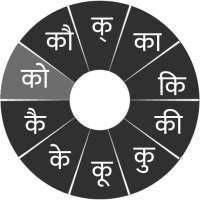
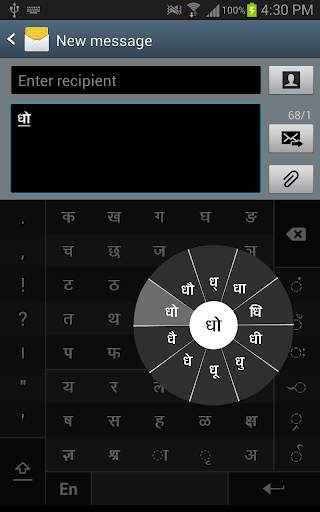
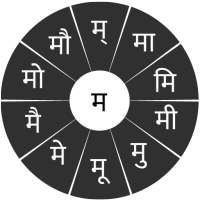
(ो) like ध ो = धो. When you touch a consonant, a chakra with combination of consonants and 10 frequent matras pops up (धा, धि, धी, धु, धू, धे, धै, धो...). The chakra gives a preview of the possible character combinations. To select a combination, you slide the stylus or finger towards it.
Typing
conjuncts
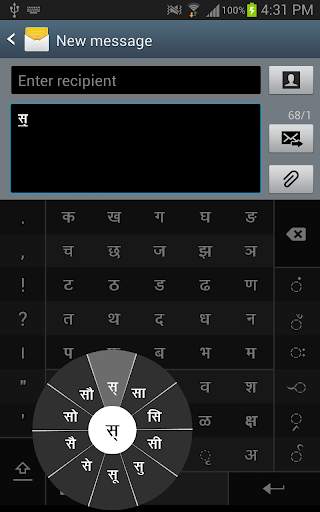
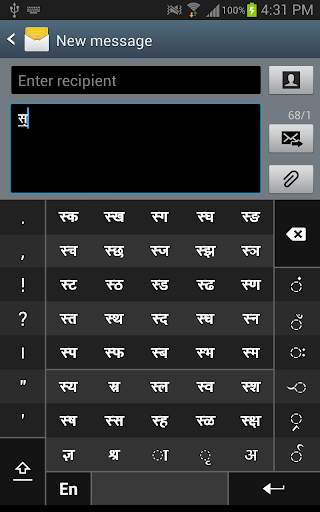
like क्रि, स्थ, च्य is particularly hard for most people. Swarachakra makes it easy. First tap on the first part of the combination and select the halant from the chakra (स ्). Swarachakra then shows a preview of all possible conjuncts that begin with that consonant (स ् त = स्त; स ् थ = स्थ etc.). If you need to add a matra, select it from the new chakra like earlier (स्था, स्थि, स्थी, स्थु, स्थू...).
To type a
rafar
(र्थ), a rashtrachinha (ट्र) or the eyelash ra (-य, -ह), first select the corresponding key from the right-most bottom keys, and then type as usual.
Complete
vowels
(अ, आ, इ, ई, उ, ऊ, ए, ऐ, ओ, औ) appear in a separate chakra on the bottom right. The less used vowels and matras are next to it (ऽ, ऑ, ृ, ऋ, ॄ, ॠ, ॆ, ॊ, ॅ, ॉ,). Numerals, symbols and rarely used characters appear on a shift. You could also switch to the QWERTY keypad temporarily to input English characters.
Installing Swarachakra
First, install Swarachakra Konkani by clicking the “Install” button above.
Next, you need to “enable” the keyboard. To enable, open “Settings”, select “Language and Input” and check the box in front of स्वरचक्र कोंकणी (Swarachakra Konkani) in the “Keyboard and input methods” section.
Finally, click on the “Default” option in the “Keyboard and input methods” section, and select स्वरचक्र कोंकणी (Swarachakra Konkani) as the default keyboard. (Sorry, but that’s how Android works)
NOTE: Swarachakra is designed for Android 4.0 (ICS) onwards. It does not work right now on older versions because they do not have Unicode support.

...

👉 For More Detail of Swarachakra Konkani Keyboard

#4 Swarachakra Marathi Keyboard

Swarachakra Marathi Keyboard
Rating: star 4.5 | Version: 2.6 | Size: 7.2MB
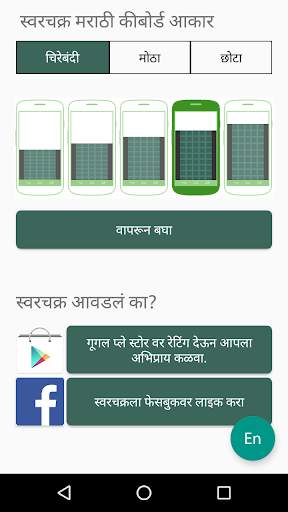
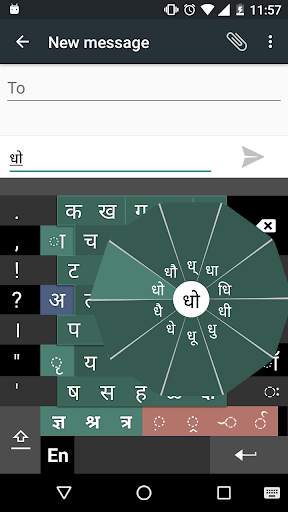
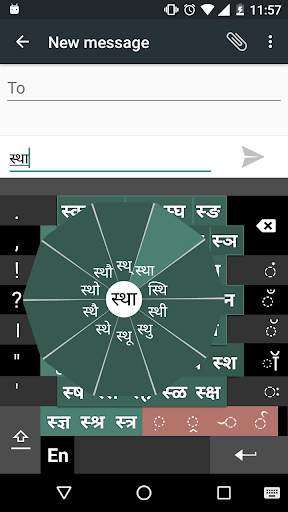
Swarachakra Marathi Keyboard screenshot 1 Swarachakra Marathi Keyboard screenshot 2 Swarachakra Marathi Keyboard screenshot 3

"स्वराज्य हा माझा जन्मसिद्ध हक्क आहे, आणि तो मी मिळवणारच" - बाळ गंगाधर टिळक. If your device can display this sentence in Marathi perfectly, then your device supports Marathi and Swarachakra should also work well. If you do not see any text, or if some of the words are incorrect, Swarachakra may not work well.
Swarachakra Marathi (स्वरचक्र मराठी) is a touch-screen keyboard for inputting text in Marathi. (For Hindi please use Swarachakra Hindi and for Konkani please use Swarachakra Konkani. Swarachakra is also available in Gujarati, Telugu, Kannada, Malayalam, Odia, Punjabi, Bengali and Tamil). Swarachakra uses a logically ordered design based on the structure of Devanagari. Swarachakra displays the consonants sequenced according to the logical structure of Devanagari, phonetically grouped and arranged in a grid similar to those found in most school textbooks.
Typing with Swarachakra
In Devanagari, we frequently need to type a combination of a consonant (ध) and a matra (ो) like ध ो = धो. When you touch a consonant, a chakra with combination of consonants and 10 frequent matras pops up (धा, धि, धी, धु, धू, धे, धै, धो...). The chakra gives a preview of the possible character combinations. To select a combination, you slide the stylus or finger towards it.
Typing conjuncts like क्रि, स्थ, च्य is particularly hard for most people. Swarachakra makes it easy. First tap on the first part of the combination and select the halant from the chakra (स ्). Swarachakra then shows a preview of all possible conjuncts that begin with that consonant (स ् त = स्त; स ् थ = स्थ etc.). If you need to add a matra, select it from the new chakra like earlier (स्था, स्थि, स्थी, स्थु, स्थू...).
To type a rafar (र्थ), a rashtrachinha (ट्र) or the eyelash ra (-य, -ह), first select the corresponding key from the right-most bottom keys, and then type as usual.
Complete vowels (अ, आ, इ, ई, उ, ऊ, ए, ऐ, ओ, औ) appear in a separate chakra on the bottom right. The less used vowels and matras are next to it (ऽ, ऑ, ृ, ऋ, ॄ, ॠ, ॆ, ॊ, ॅ, ॉ,). Numerals, symbols and rarely used characters appear on a shift. You could also switch to the QWERTY keypad temporarily to input English characters.
Installing Swarachakra
First, install Swarachakra Marathi by clicking the “Install” button above.
Next, you need to “enable” the keyboard. To enable, open “Settings”, select “Language and Input” and check the box in front of स्वरचक्र मराठी (Swarachakra Marathi) in the “Keyboard and input methods” section.
Finally, click on the “Default” option in the “Keyboard and input methods” section, and select स्वरचक्र मराठी (Swarachakra Marathi) as the default keyboard. (Sorry, but that’s how Android works)
NOTE: Swarachakra is designed for Android 4.0 (ICS) onwards. It does not work right now on older versions because they do not have Unicode support.

...

👉 For More Detail of Swarachakra Marathi Keyboard

#5 Swarachakra Asomiya Keyboard

Swarachakra Asomiya Keyboard
Rating: star 4.0 | Version: 2.01 | Size: 664.1KB

Swarachakra Asomiya Keyboard screenshot 1 Swarachakra Asomiya Keyboard screenshot 2 Swarachakra Asomiya Keyboard screenshot 3

"আলি কাটি জালি দিম,
চামৰ পীৰা পাৰি দিম,
তাতে বহি ৰ'দ দে।"
If your device can display this sentence in Assamese perfectly, then your device supports Assamese and Swarachakra should also work well. If you do not see any text, or if some of the words are incorrect, Swarachakra may not work well.
Swarachakra Asomiya (স্বৰচক্ৰ অসমীয়া)
is a touch-screen keyboard for inputting text in Assamese. (Swarachakra is also available in Hindi, Marathi, Gujarati, Telugu, Kannada, Malayalam, Odia, Punjabi, Konkani, Bengali and Tamil). Swarachakra uses a logically ordered design based on the structure of Assamese script. It displays the consonants sequenced according to the logical structure of Assamese script, phonetically grouped and arranged in a grid similar to those found in most school textbooks.
Typing with Swarachakra
In Assamese, we frequently need to type a combination of a
consonant
(

) and a
matra
(

) like


> =
ধো
. When you touch a consonant, a chakra with combination of consonants and 10 frequent matras pops up (
ধা, ধি,ধী, ধু, ধূ, ধে, ধৈ, ধো, ধৌ..
). The chakra gives a preview of the possible character combinations. To select a combination, you slide the stylus or finger towards it.
Typing
conjuncts
like
ক্রি , ষ্থ, চ্য়
is particularly hard for most people. Swarachakra makes it easy. First tap on the first part of the combination and select the halant from the chakra (


). Swarachakra then shows a preview of all possible conjuncts that begin with that consonant (


=
স্থ
;


=
চ্য়
etc.). If you need to add a matra, select it from the new chakra like earlier (
স্থা, স্থি, স্থী, স্থু , স্থূ ...
).
To type a
rafar
(
র্থ
), a
rashtrachinha
(
ত্র
) or a
nukta
(
ড়
,
খ়
), first select the corresponding key from the right-most bottom keys, and then type as usual.
Complete
vowels
(
অ আ ই ঈ উ ঊ এ ঐ ও ঔ
) appear in a separate chakra on the bottom right. The less used vowels and matras are next to it (
ঽ ৎ ৃ ঋৄ ৄ ৠ ৢ ঌ ৣ ৡ
). Numerals, symbols and rarely used characters appear on a shift. You could also switch to the QWERTY keypad temporarily to input English characters.
Installing Swarachakra
First, install Swarachakra Asomiya by clicking the “Install” button above.
Next, you need to “enable” the keyboard. To enable, open “Settings”, select “Language and Input” and check the box in front of
স্বৰচক্ৰ অসমীয়া
(Swarachakra Asomiya) in the “Keyboard and input methods” section.
Finally, click on the “Default” option in the “Keyboard and input methods” section, and select
স্বৰচক্ৰ অসমীয়া
(Swarachakra Asomiya) as the default keyboard. (Sorry, but that’s how Android works)
NOTE: Swarachakra is designed for Android 4.0 (ICS) onwards. It does not work right now on older versions because they do not have Unicode support.

...

👉 For More Detail of Swarachakra Asomiya Keyboard

Search Results

1/20

You may like

DOWNLOAD IS NOT SUPPORTED IN WEB STORE!
Use the latest version of 9Apps to download APK&OBB file of games in one click!
DOWNLOAD 9APPS