Welcome to the official store for application World. 20,000+ users downloaded 2019 Chinese endoscope & USB camera for Samsung latest version on 9Apps for free every week! One thing you need to know that this app is unique. This hot app was released on 2019-01-19. 9Apps allows you to download more apps and updated daily!
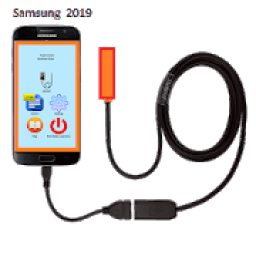
This app allows you to capture and save videos with HD image quality from any USB-camera or Endoscope.
Product features:
• can connect wide variety of USB cameras to the gadget
• can connect android endoscopes to the gadget
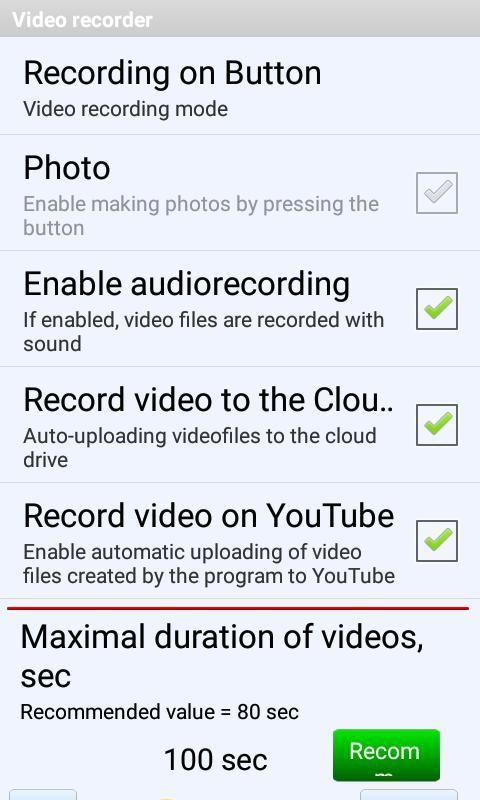
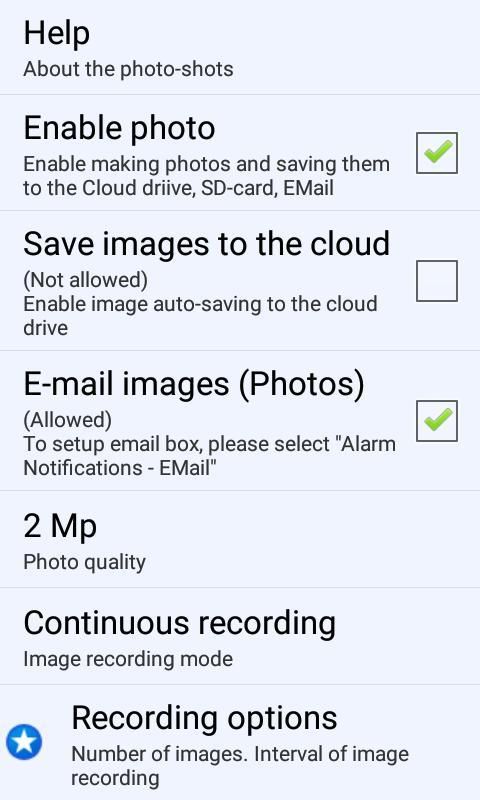
• can save as photos as video files recorded from the cameras
• languages: English, Spanish, Chinese, German, Japanese, French, Italian, Russian
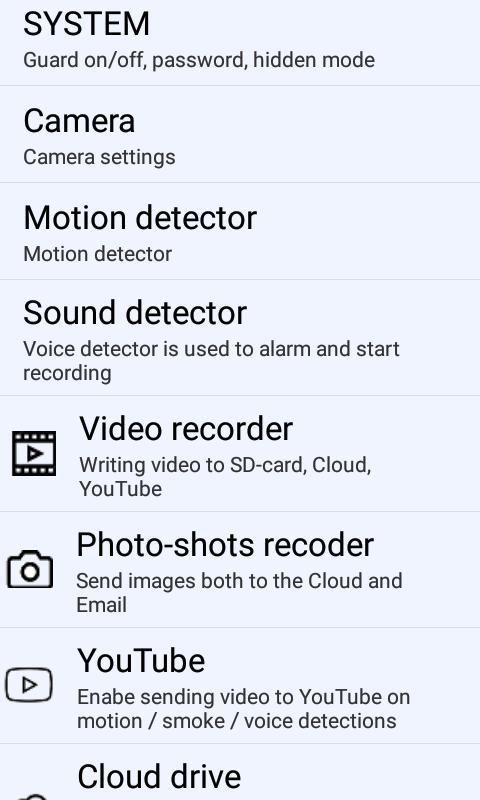
The recording can begin:
1) When you press a special button on the screen (green button)
2) By motion detector
3) By the sound detector (you can just shout out loud and the recording will start)
4) Scheduled
How does it work?
1) Videos. To start video recording you need press big button in the left top side of the screen.
2) Photos. To make the photo you need click "photo" icon in the right top side of the screen.
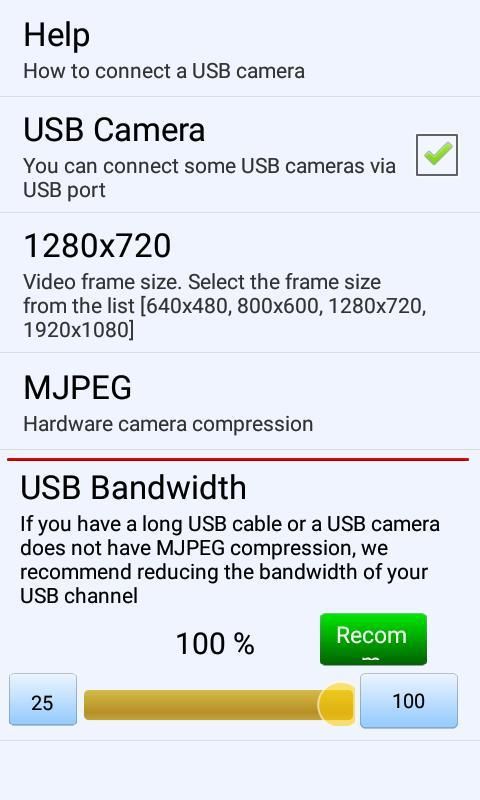
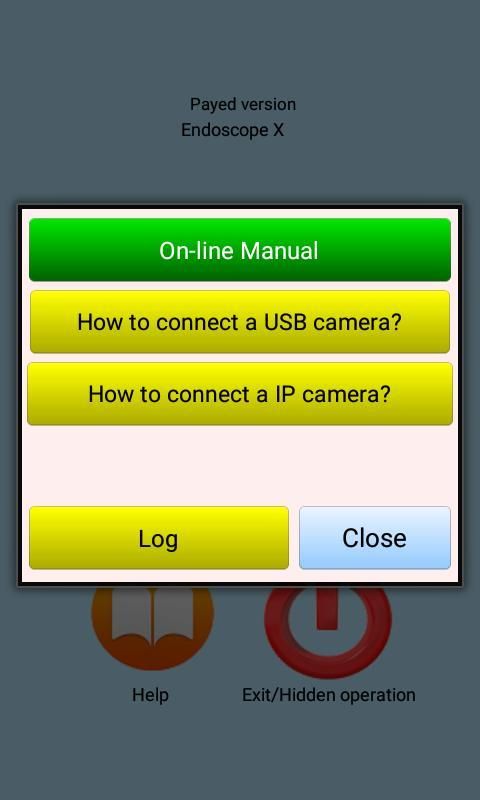
There are certain requirements so you can connect the gadget to an external USB camera.
1) Check that your gadget can support USB OTG. This means that you can connect different peripheral devices (e.g., USB flash drive, USB-disk, etc.) to your gadget via USB.
2) USB camera must support UVC standard. This means that that USB camera can be used in Android.
3) A high-quality micro USB OTG cable must be used to connect the USB camera and gadget. This means that this cable should not be very long - the shorter the cable, the better.
Why the screen is black?
Let's say your gadget supports the OTG function and the USB camera is compatible with ANDROID. But the screen remains black.
Why? The reason may be in that you don't choice "Use by default for this USB device" in the dialog box.
This dialog box appears when you start the application with connected USB camera.
The appearance of this dialog box is guaranteed after the gadget is restarted.
PERMISSIONS
The app can perform actions for which it is necessary to obtain permissions from the user. For example:
1) The app can use the camera to record video & audio
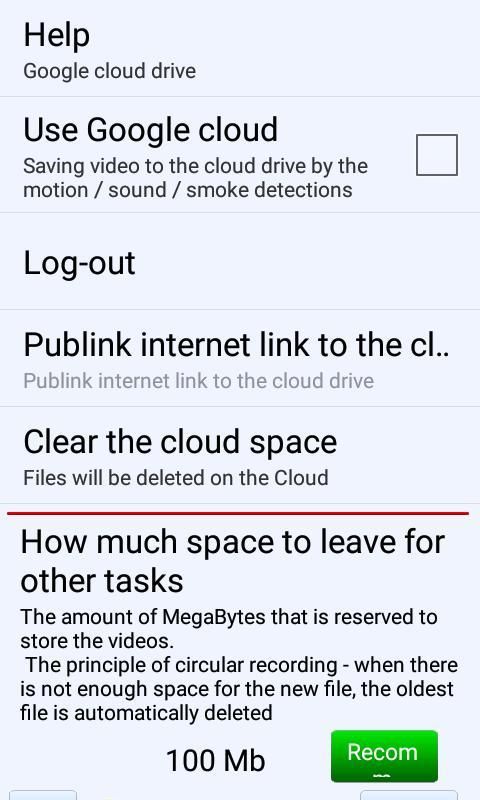
2) The app can record multimedia video files in a separate folder (archive)
3) The app can use a microphone to record sound
To function normally, the app must obtain permissions from the user to perform these actions. This is done at the moment when the corresponding dialog box appears in front of the user. In this window, the system asks the user whether it is possible to give the permission to do something (for example, use a camera or microphone).
Aplikasi ini memungkinkan Anda untuk mengambil dan menyimpan video dengan kualitas gambar HD dari USB-camera atau Endoscope.
Fitur Produk:
• dapat menghubungkan berbagai kamera USB ke gadget
• dapat menghubungkan endoskopi android ke gadget
• dapat menyimpan sebagai foto sebagai file video yang direkam dari kamera
• bahasa: Inggris, Spanyol, Cina, Jerman, Jepang, Prancis, Italia, Rusia
Rekaman dapat dimulai:
1) Ketika Anda menekan tombol khusus di layar (tombol hijau)
2) Dengan detektor gerak
3) Dengan detektor suara (Anda bisa berteriak keras dan rekaman akan dimulai)
4) Dijadwalkan
Bagaimana cara kerjanya?
1) Video. Untuk memulai perekaman video, Anda perlu menekan tombol besar di sisi kiri atas layar.
2) Foto. Untuk membuat foto, Anda perlu mengklik ikon "foto" di sisi kanan atas layar.
Ada persyaratan tertentu sehingga Anda dapat menghubungkan gadget ke kamera USB eksternal.
1) Periksa apakah gadget Anda dapat mendukung USB OTG. Ini berarti Anda dapat menghubungkan berbagai perangkat periferal (mis., USB flash drive, USB-disk, dll.) Ke gadget Anda melalui USB.
2) Kamera USB harus mendukung standar UVC. Ini berarti bahwa kamera USB dapat digunakan di Android.
3) Kabel OTG USB mikro berkualitas tinggi harus digunakan untuk menghubungkan kamera dan gadget USB. Ini berarti bahwa kabel ini seharusnya tidak terlalu panjang - semakin pendek kabel, semakin baik.
Mengapa layarnya hitam?
Katakanlah gadget Anda mendukung fungsi OTG dan kamera USB kompatibel dengan ANDROID. Namun layar tetap hitam.
Mengapa? Alasannya mungkin karena Anda tidak memilih "Gunakan secara default untuk perangkat USB ini" di kotak dialog.
Kotak dialog ini muncul ketika Anda memulai aplikasi dengan kamera USB yang terhubung.
Tampilan kotak dialog ini dijamin setelah gadget dihidupkan ulang.
IZIN
Aplikasi ini dapat melakukan tindakan yang diperlukan untuk mendapatkan izin dari pengguna. Sebagai contoh:
1) Aplikasi ini dapat menggunakan kamera untuk merekam video & audio
2) Aplikasi ini dapat merekam file video multimedia dalam folder terpisah (arsip)
3) Aplikasi ini dapat menggunakan mikrofon untuk merekam suara
Agar berfungsi normal, aplikasi harus mendapatkan izin dari pengguna untuk melakukan tindakan ini. Ini dilakukan pada saat kotak dialog yang sesuai muncul di depan pengguna. Di jendela ini, sistem bertanya kepada pengguna apakah mungkin memberikan izin untuk melakukan sesuatu (misalnya, menggunakan kamera atau mikrofon).
HD/FHD image


9Apps 4.9