Enjoy the most popular apps here! 20,000+ users downloaded 2019 Chinese endoscope & USB camera for Samsung latest version on 9Apps for free every week! The application is severely widely use. This hot app was released on 2019-01-19. Besides, you can also select other popular apps you like here!
This app allows you to capture and save videos with HD image quality from any USB-camera or Endoscope.
Product features:
• can connect wide variety of USB cameras to the gadget
• can connect android endoscopes to the gadget
• can save as photos as video files recorded from the cameras
• languages: English, Spanish, Chinese, German, Japanese, French, Italian, Russian
The recording can begin:
1) When you press a special button on the screen (green button)
2) By motion detector
3) By the sound detector (you can just shout out loud and the recording will start)
4) Scheduled
How does it work?
1) Videos. To start video recording you need press big button in the left top side of the screen.
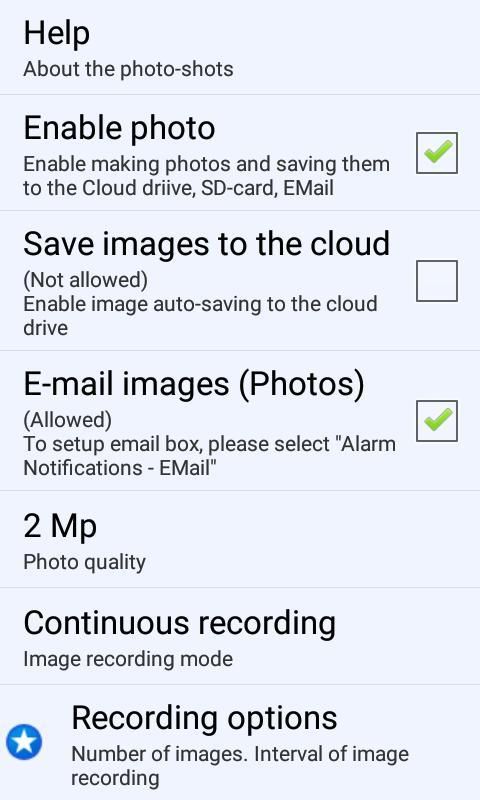
2) Photos. To make the photo you need click "photo" icon in the right top side of the screen.
There are certain requirements so you can connect the gadget to an external USB camera.
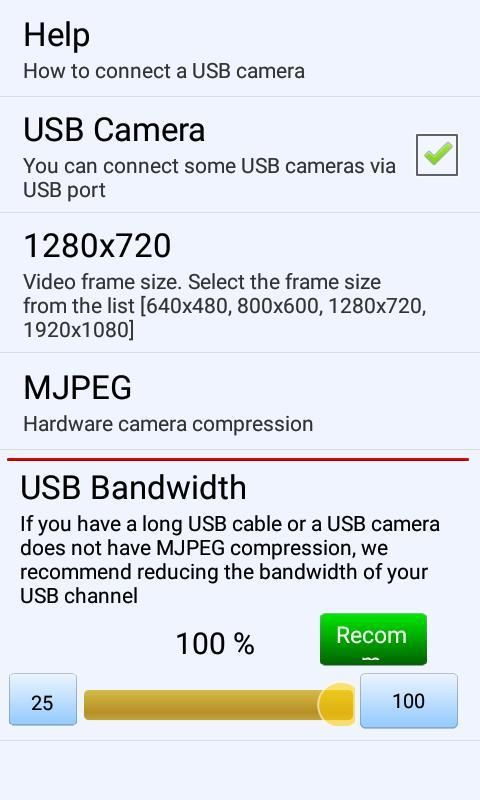
1) Check that your gadget can support USB OTG. This means that you can connect different peripheral devices (e.g., USB flash drive, USB-disk, etc.) to your gadget via USB.
2) USB camera must support UVC standard. This means that that USB camera can be used in Android.
3) A high-quality micro USB OTG cable must be used to connect the USB camera and gadget. This means that this cable should not be very long - the shorter the cable, the better.
Why the screen is black?
Let's say your gadget supports the OTG function and the USB camera is compatible with ANDROID. But the screen remains black.
Why? The reason may be in that you don't choice "Use by default for this USB device" in the dialog box.
This dialog box appears when you start the application with connected USB camera.
The appearance of this dialog box is guaranteed after the gadget is restarted.
PERMISSIONS
The app can perform actions for which it is necessary to obtain permissions from the user. For example:
1) The app can use the camera to record video & audio
2) The app can record multimedia video files in a separate folder (archive)
3) The app can use a microphone to record sound
To function normally, the app must obtain permissions from the user to perform these actions. This is done at the moment when the corresponding dialog box appears in front of the user. In this window, the system asks the user whether it is possible to give the permission to do something (for example, use a camera or microphone).
यह ऐप आपको किसी भी यूएसबी-कैमरा या एंडोस्कोप से एचडी इमेज क्वालिटी के साथ वीडियो कैप्चर और सेव करने की सुविधा देता है।
उत्पाद की विशेषताएँ:
• विभिन्न प्रकार के USB कैमरों को गैजेट से जोड़ सकते हैं
• गैजेट के लिए एंड्रॉइड एंडोस्कोप कनेक्ट कर सकते हैं
• कैमरों से रिकॉर्ड की गई वीडियो फ़ाइलों के रूप में तस्वीरों को बचा सकता है
• भाषाएँ: अंग्रेजी, स्पेनिश, चीनी, जर्मन, जापानी, फ्रेंच, इतालवी, रूसी
रिकॉर्डिंग शुरू हो सकती है:
1) जब आप स्क्रीन पर एक विशेष बटन दबाते हैं (हरा बटन)
2) मोशन डिटेक्टर द्वारा
3) ध्वनि डिटेक्टर द्वारा (आप सिर्फ जोर से चिल्ला सकते हैं और रिकॉर्डिंग शुरू हो जाएगी)
4) अनुसूचित
यह कैसे काम करता है?
1) वीडियो। वीडियो रिकॉर्डिंग शुरू करने के लिए आपको स्क्रीन के बाईं ओर ऊपरी हिस्से में बड़ा बटन दबाना होगा।
2) तस्वीरें। फोटो बनाने के लिए आपको स्क्रीन के दाईं ओर ऊपरी भाग में "फोटो" आइकन पर क्लिक करना होगा।
कुछ आवश्यकताएँ हैं इसलिए आप गैजेट को बाहरी USB कैमरे से जोड़ सकते हैं।
1) जांचें कि आपका गैजेट USB OTG का समर्थन कर सकता है। इसका मतलब है कि आप विभिन्न परिधीय उपकरणों (जैसे, यूएसबी फ्लैश ड्राइव, यूएसबी-डिस्क, आदि) को यूएसबी के माध्यम से अपने गैजेट से जोड़ सकते हैं।
2) USB कैमरा को UVC मानक का समर्थन करना चाहिए। इसका मतलब है कि एंड्रॉइड में यूएसबी कैमरा का उपयोग किया जा सकता है।
3) USB कैमरा और गैजेट को जोड़ने के लिए एक उच्च-गुणवत्ता वाली माइक्रो USB OTG केबल का उपयोग किया जाना चाहिए। इसका मतलब है कि यह केबल बहुत लंबा नहीं होना चाहिए - केबल जितना छोटा होगा, उतना ही बेहतर होगा।
स्क्रीन काली क्यों है?
मान लें कि आपका गैजेट OTG फ़ंक्शन का समर्थन करता है और USB कैमरा ANDROID के साथ संगत है। लेकिन स्क्रीन काली ही रहती है।
क्यूं कर? इसका कारण यह हो सकता है कि आप संवाद बॉक्स में "इस USB डिवाइस के लिए डिफ़ॉल्ट रूप से उपयोग करें" का विकल्प न चुनें।
जब आप कनेक्टेड USB कैमरा से एप्लिकेशन शुरू करते हैं तो यह डायलॉग बॉक्स दिखाई देता है।
गैजेट के पुनरारंभ होने के बाद इस संवाद बॉक्स की उपस्थिति की गारंटी है।
अनुमति
ऐप उन कार्यों को कर सकता है जिनके लिए उपयोगकर्ता से अनुमति प्राप्त करना आवश्यक है। उदाहरण के लिए:
1) ऐप वीडियो और ऑडियो रिकॉर्ड करने के लिए कैमरे का उपयोग कर सकता है
2) ऐप एक अलग फ़ोल्डर (संग्रह) में मल्टीमीडिया वीडियो फ़ाइलों को रिकॉर्ड कर सकता है
3) ऐप ध्वनि रिकॉर्ड करने के लिए माइक्रोफोन का उपयोग कर सकता है
सामान्य रूप से कार्य करने के लिए, ऐप को इन कार्यों को करने के लिए उपयोगकर्ता से अनुमति लेनी होगी। यह उस समय किया जाता है जब संबंधित संवाद बॉक्स उपयोगकर्ता के सामने आता है। इस विंडो में, सिस्टम उपयोगकर्ता से पूछता है कि क्या कुछ करने की अनुमति देना संभव है (उदाहरण के लिए, कैमरा या माइक्रोफ़ोन का उपयोग करें)।
HD/FHD image

9Apps 4.9