wifi password ip dns on 9Apps

Free download latest wifi password ip dns for Android here and enjoy it with your phone. Below you can download a list of top and latest apps related to wifi password ip dns . 9APPS is a fast, safe app store. With 9APPS, you can save a lot of time on searching and downloading apps.

#1 WiFi Password, IP, DNS

WiFi Password, IP, DNS
Rating: star 4.0 | Version: 1.3.6 | Size: 2.7MB
WiFi Password, IP, DNS screenshot 1 WiFi Password, IP, DNS screenshot 2 WiFi Password, IP, DNS screenshot 3

ROOT REQUIRED! ROOT REQUIRED to see the password!
* It shows password of all Wifi networks you have connected Wifi only. This is not a hack tool.
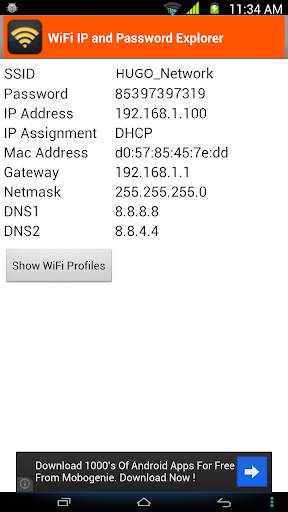
Sometimes your friends want to use your home Wi-fi connection but you can have a problem if you forget your own password. This app will help you out in this situation. It can also display the passwords of all Wi-fi profiles on your device.
MAIN FEATURES:
1. Remember/Display Wi-fi SSID and DHCP Info (IP address, gateway, DNS) of all Wi-Fi networks you will connect to. This is very helpful when your device cannot obtain IP address via DHCP and you have to configure Wi-fi using static IP. Based on this info, you can use
Wifi settings
to configure the Wi-fi network for your device.
2. Display the connected Wi-fi's password.
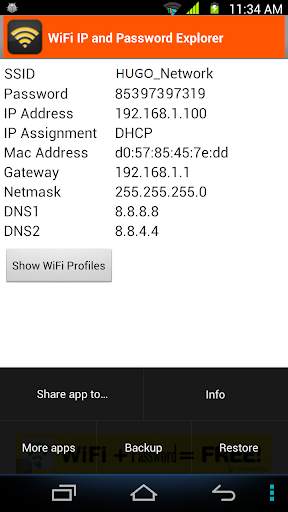
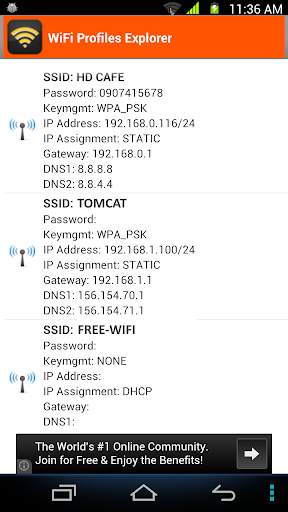
3. List out all Wi-fi profiles on your devices. You can select one or all Wi-fi profiles and share it to everyone via email, SMS, .... You can also copy them to file that is located at /storage/emulated/0/htmt/wifipassword
4. Backup all Wifi profiles to /storage/emulated/0/htmt/wifipassword/wifiprofile.lnz
5. Restore all Wifi profiles from /storage/emulated/0/htmt/wifipassword/wifiprofile.lnz. You can use this wifiprofile.lnz to restore to other device.
NOTES:
* If you have already installed my app and realized that your device has not been rooted yet, please don't rate 1*. There is the only one way I can retrieve the Wi-fi password info that is I need to have root permission. Thank you for your installation.

...

👉 For More Detail of WiFi Password, IP, DNS

#2 WiFi Settings (dns,ip,gateway)

WiFi Settings (dns,ip,gateway)
Rating: star 4.3 | Version: 1.3.4 | Size: 2.7MB
WiFi Settings (dns,ip,gateway) screenshot 1 WiFi Settings (dns,ip,gateway) screenshot 2 WiFi Settings (dns,ip,gateway) screenshot 3

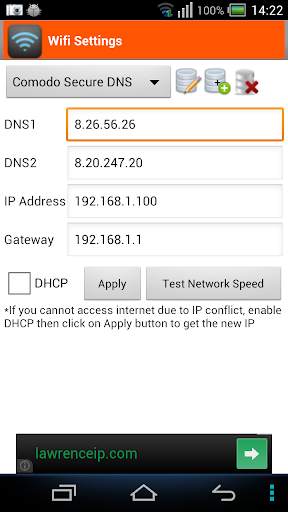
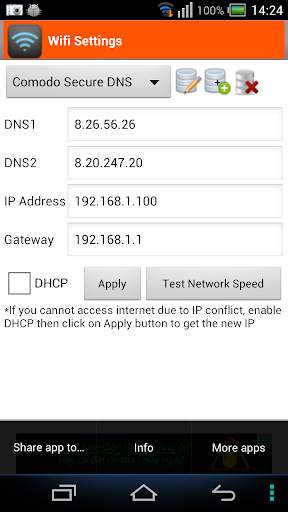
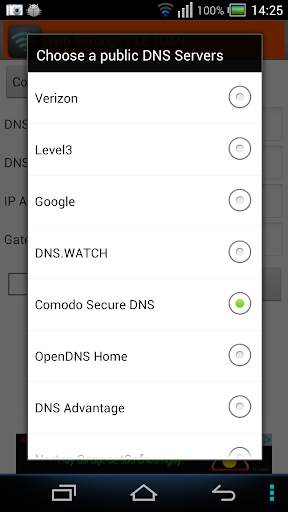
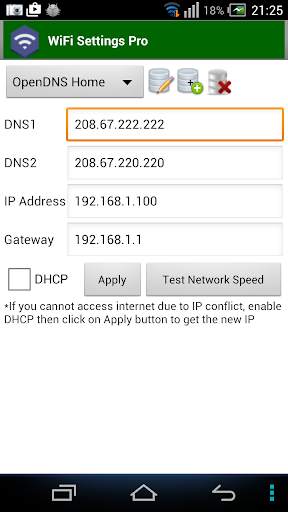
This app enables you to access the blocked sites by using some free DNS servers. If your device is unable to obtain IP address, let use this app. This app works perfectly on Android 2.3 and up. It supports for Android 5.x Lollipop too. On android 6.x, please use
https://play.google.com/store/apps/details?id=htmt.rootdnssettings
When you have changed the DNS successfully, you can check the network speed by clicking on "Test Network Speed" button. It help you find out the best DNS server for your network.
* Why using free DNS servers?
- Speed up internet browsing
- Be able to access to blocked websites
* Main features:
- Change IP address
- Change Gateway
- Change DNS
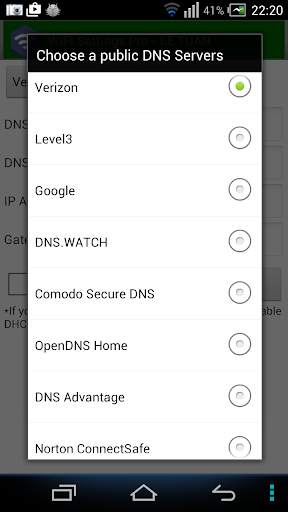
- Add/Update/Remove DNS: You can add a new DNS server to the DNS List. You can also update/remove the DNS that you added to the list.
- Test Network speed
* FAQ 1. How to change the DNS and use the static IP
Step 1: Turn on Wifi then launch this app.
Step 2: Choose any DNS then click on Apply button. That's all.
* FAQ 2. How to change back to the original DNS
In case you don't want to use custom DNS anymore, please check on "DHCP" then click on Apply button.
* FAQ 3. You are connected to the network but cannot access the internet, what's wrong?
Your IP device may conflict with another device in your network. In order to get a new IP, check on the "DHCP" then click on Apply button. After restarting the Wifi connection successfully, you will get the new IP address. At that time, you can change the DNS manually as shown in FAQ1.
* Notes:
- This app does NOT require root permission.
- This app only works on IPv4 Wifi networks.
- The DNS changes takes effect permanently even after reboot
- Each SSID gets it's own setting, so you can default to your home or work router's setting (which you've already set the way you want). Just remember to set it the first time you use a new access point.

...

👉 For More Detail of WiFi Settings (dns,ip,gateway)

#3 Wifi password IP, DNS (Scanner, Manager)

Wifi password IP, DNS (Scanner, Manager)
Rating: star 3.0 | Version: 1.3.6 | Size: 2.7MB
Wifi password IP, DNS (Scanner, Manager) screenshot 1 Wifi password IP, DNS (Scanner, Manager) screenshot 2 Wifi password IP, DNS (Scanner, Manager) screenshot 3

This application shows password of all Wifi networks you have connected Wifi only. This is not a hack tool.
Sometimes your friends want to use your home Wi-fi connection but you can have a problem if you forget your own password. This app will help you out in this situation. It can also display the passwords of all Wi-fi profiles on your device.
MAIN FEATURES:
1. Remember/Display Wi-fi SSID and DHCP Info (IP address, gateway, DNS) of all Wi-Fi networks you will connect to. This is very helpful when your device cannot obtain IP address via DHCP and you have to configure Wi-fi using static IP. Based on this info, you can use Wifi settings to configure the Wi-fi network for your device.
2. Display the connected Wi-fi's password.
3. List out all Wi-fi profiles on your devices. You can select one or all Wi-fi profiles and share it to everyone via email, SMS, .... You can also copy them to file that is located at /storage/emulated/0/htmt/wifipassword
4. Backup all Wifi profiles to /storage/emulated/0/htmt/wifipassword/wifiprofile.lnz
5. Restore all Wifi profiles from /storage/emulated/0/htmt/wifipassword/wifiprofile.lnz. You can use this wifiprofile.lnz to restore to other device.
NOTES:
* If you have already installed my app and realized that your device has not been rooted yet, please don't rate 1*. There is the only one way I can retrieve the Wi-fi password info that is I need to have root permission. Thank you for your installation.
IMPORTANT
This app is not for hacking or cracking any kind of Wifi Password any kind of misuse of this app, developers will not be responsible.

...

👉 For More Detail of Wifi password IP, DNS (Scanner, Manager)

#4 WiFi Info-IP,DNS

WiFi Info-IP,DNS
Rating: star 3.0 | Version: 1 | Size: 1.3MB
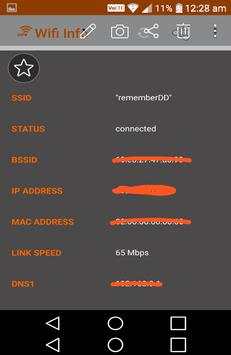
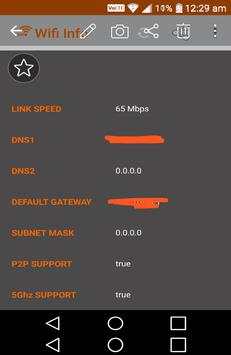
WiFi Info-IP,DNS screenshot 1 WiFi Info-IP,DNS screenshot 2 WiFi Info-IP,DNS screenshot 3

Wifi,IP,DNS information view app.
connected wifi info ip,dns view app.
-wifi info view
IP
DNS
SSID
BSSID
ip adress,ip config view in this wifi information app

...

👉 For More Detail of WiFi Info-IP,DNS

#5 WiFi Settings (DNS,IP,..) PRO

WiFi Settings (DNS,IP,..) PRO
Rating: star 4.1 | Version: 1.2.7 | Size:
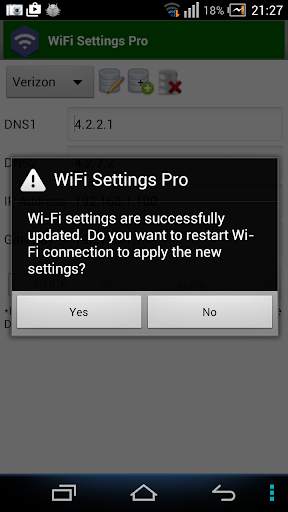
WiFi Settings (DNS,IP,..) PRO screenshot 1 WiFi Settings (DNS,IP,..) PRO screenshot 2 WiFi Settings (DNS,IP,..) PRO screenshot 3

Cette application vous permet d'accéder aux sites bloqués en utilisant certains serveurs DNS gratuits. Si votre appareil est incapable d'obtenir une adresse IP, laissez-la utiliser cette application. Cette application fonctionne parfaitement sur Android 2.3 et plus. Il prend en charge également pour Android 5.x Lollipop. Sur Android 6.x, veuillez utiliser
https://play.google.com/store/apps/ Détails? id = htmt.rootdnssiets
. Il y a
pas de bannières annonces
dans les paramètres WiFi (DNS, IP) version Pro.
Lorsque vous avez changé le DNS avec succès, vous pouvez vérifier la vitesse réseau en cliquant sur le bouton "Vitesse de test de la vitesse de test". Il vous aide à trouver le meilleur serveur DNS pour votre réseau.
Vous devez essayer d'utiliser la norme
Paramètres WiFi
App et vérifiez qu'il fonctionne d'abord sur votre appareil!
* Pourquoi utiliser des serveurs DNS gratuits?
- Accélère la navigation sur Internet
- Pouvoir accès Pour bloquer les sites Web
* Caractéristiques principales:
- Changer l'adresse IP
- Changer la passerelle
- Modifier DNS
- Ajout / mise à jour / Suppression DNS: Vous pouvez ajouter un nouveau serveur DNS à la liste DNS. Vous pouvez également mettre à jour / supprimer le DNS que vous avez ajouté à la liste.
- Autoriser l'utilisateur à tester la vitesse du réseau
* FAQ 1. Comment changer le DNS et utiliser l'étape IP statique
1: Allumez WiFi puis lancez cette application.
Étape 2: Choisissez n'importe quel DNS puis cliquez sur le bouton Appliquer. C'est tout.
* FAQ 2. Comment passer à l'adresse DNS d'origine Au cas où vous ne souhaitez plus utiliser DNS personnalisé, veuillez vérifier sur "DHCP" puis cliquez sur le bouton Appliquer.
* FAQ 3. Vous êtes connecté au réseau mais ne peut pas accéder à Internet, qu'est-ce qui ne va pas?
Votre appareil IP peut entrer en conflit avec un autre périphérique de votre réseau. Pour obtenir une nouvelle adresse IP, vérifiez sur le «DHCP» puis cliquez sur le bouton Appliquer. Après avoir redémarré la connexion WiFi avec succès, vous obtiendrez la nouvelle adresse IP. A cette époque, vous pouvez modifier le DNS manuellement comme indiqué dans FAQ1.
* Remarques: Cette application ne nécessite pas la permission de la racine.
- Cette application ne fonctionne que sur les réseaux WiFi IPv4.
- Les changements DNS prend effet. Enfin, même après le redémarrage de
- Chaque SSID obtient son propre paramètre, vous pouvez donc par défaut de votre réglage de votre domicile ou de votre routeur de travail (que vous avez déjà défini comme vous le souhaitez). N'oubliez pas de la définir la première fois que vous utilisez un nouveau point d'accès.

...

👉 For More Detail of WiFi Settings (DNS,IP,..) PRO

Search Results

1/1

You may like

DOWNLOAD IS NOT SUPPORTED IN WEB STORE!
Use the latest version of 9Apps to download APK&OBB file of games in one click!
DOWNLOAD 9APPS