






DOWNLOAD IS NOT SUPPORTED IN WEB STORE!
Use the latest version of 9Apps to download APK&OBB file of games in one click!
DOWNLOAD 9APPS
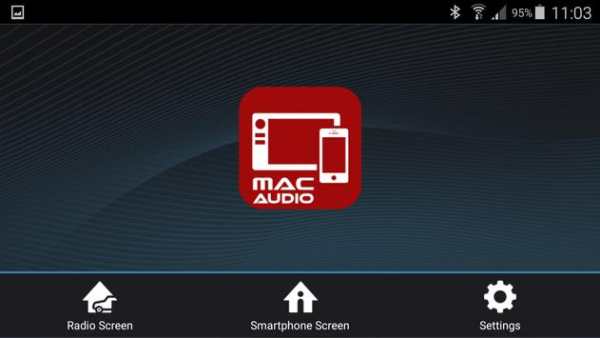
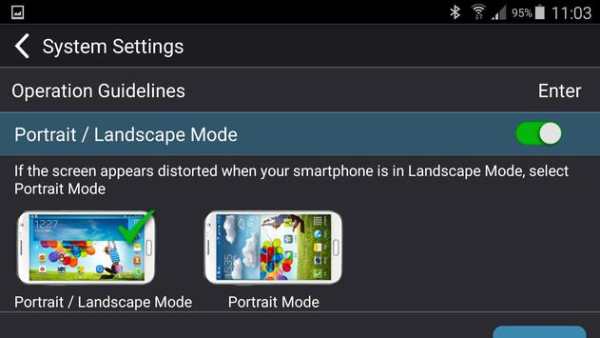
1. Mac Audio App Installation Procedure
Download and install the Mac Audio MHL app from Google Play Store on your smartphone.
2. Smartphone / Head Unit Bluetooth Connection
In order to have full touch screen control from the head unit display (via the Mac Audio MHL app), a Bluetooth connection is required between your smartphone and head unit. Refer to the head unit / smartphone documentation for further information on pairing / connecting devices.
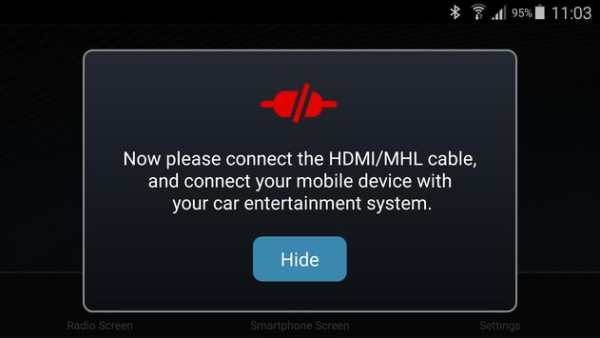
3. Connect Your Smartphone
Some of the Android smartphones will require an HDMI/MHL adapter in addition to an HDMI cable with 2 type A male connectors.
These adapters are available at smartphone retail stores. See head unit documentation for more information about HDMI/MHL adapters, as well as how to connect your smartphone with your head unit via HDMI/MHL cable.
4. Touch Screen Calibration Start
Go to “Settings” of the Mac Audio MHL app, scroll down slightly and press the "Touch Screen Calibration" start button.
To ensure that the app functions properly, press the ( ) icon firmly as the icon moves around the screen. This calibration is performed once per phone when initially set up.
5. Touch Screen Calibration
Once the touch screen is calibrated, scroll up and press "System Settings" to return to the main HDMI/MHL connect page.
Press "Home(Mobile)" to access your smartphone from the touch screen of the multimedia head unit. Touch the "Home(Car)" to return to the main source menu of the head unit.